Tuesday, January 17, 2012

Install NetBeans IDE on Windows 8

NetBeans IDE is open-source and free IDE, Runs on Windows, Linux, Mac OS X and Solaris, to develop desktop, mobile and web applications with Java, PHP, C/C++ and more. The current version is NetBeans IDE 7.1.

- Browse to NetBeans download page, http://netbeans.org/downloads/index.html. Make sure the Platform selection is suit your platform, and click to select the bundles to download. In my case, I download with All bundles of 249MB. Actually, you can add or remove packs later using the IDE's Plugin Manager (Tools | Plugins).
Download to install

- Your download should start automatically. Click to run it after download completed.


- Accept the suggested NetBeans IDE directory. The JDK directory should be the detected directory with JDK. (Refer to the post Install JDK 7 on Windows 8 if yo haven't install it)


- Accept the suggested install GlassFish directory.
install GlassFish directory

- Review your setting and click Install.


- Finish.
Finish

- You should have shortcut to NetBeans IDE 7.1 on both your Metro UI and Desktop.
NetBeans IDE shortcut on Metro UI
NetBeans IDE shortcut on Desktop

Related:
- Create Hello World! using NetBeans IDE 7.1 to verify your installation.

Set PATH for JDK 7 on Windows 8

You can run the JDK without setting the PATH environment variable, or you can optionally set it so that you can conveniently run the JDK executable files (javac.exe, java.exe, javadoc.exe, and so forth) from any directory without having to type the full path of the command.

To setup PATH in Windows 8:
Run Control Panel in Windows 8's Metro UI


Click More Settings in Control... on the left.


Search "Environment Variables" in Control Panel, and click "Edit the system environment variables".


Click on "Environment Variables..."


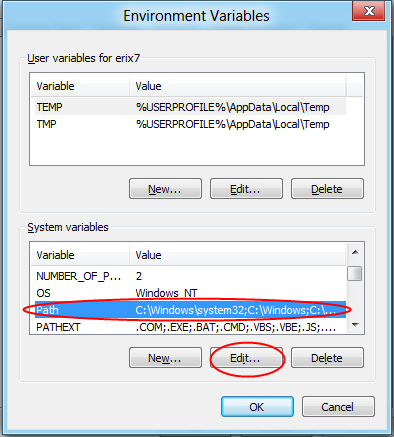
Scroll down to highligh and edit path items.


My full path of the bin folder of the JDK is:
C:\Program Files\Java\jdk1.7.0_02\bin

So add ";C:\Program Files\Java\jdk1.7.0_02\bin" in the path string.


Click OK... to finish.

Re-open Windows 8's "cmd" window, now i can start java and javac in anywhere.


Updated@2013-01-17: Set PATH environment variable to JDK on official Windows 8

Run "cmd" in Windows 8

To run "cmd" in Windows 8, move mouse cursor to the bottom-left corner in Metro UI, click Search in the pop-up menu.


Search "cmd", click on the listed icon of "cmd".


That's!